|
|
Home | Switchboard | Unix Administration | Red Hat | TCP/IP Networks | Neoliberalism | Toxic Managers |
| (slightly skeptical) Educational society promoting "Back to basics" movement against IT overcomplexity and bastardization of classic Unix | |||||||
|
|
Cygwin is a free software package that provides a Unix-like environment and software tool set in Windows environment (2000/XP/Vista). Cygwin was started in 1995 by Steve Chamberlain, an engineer working for Cygnus (company later bought by Red Hat, which in turn was bought by IBM). The earliest mailing list references on the Web are in early 1997, by which time it appears to have been in a functional state.
Recently it became rather unstable and updates should be performed with great caution, only after backing up the previous installed version.
For example on Feb 16, 2020 Cygwin updated Perl from 5.34 to 5.30. That letter version is not even beta. It is alpha as for example predicate -s (-s file) does not work. Previous version 5.26.3 worked reliably. This push for Perl 5.30 greatly undermined value of Cygwin for those who use it as the Perl platform.
Cygwin is the most popular of server Unix-emulation packages available for windows. Among alternatives we can mention uwin -- free high quality implementation from AT&T which was led by David Korn (it includes ksh93). While discontinued Microsoft SFU version 3.5 was a high quality POSIX emulator for Windows too. It is still available for Windows XP.
It runs best on Windows XP or Windows 7 with NTFS. Currently 64 bit version is the dominant one.
Cygwin contains:
Cygwin consists of a Unix system call emulation library, cygwin1.dll, together with a set of GNU and other free software applications organized into a large number of optionally installed packages. Among these packages are a complete X11 development toolkit, GNU emacs, TeX and LaTeX, OpenSSH (client and server), and much more.
Due to presence of emulation layer cygwin (and especially Cygwin/X) is much slower then X servers which use native Win32 API.
Cygwin is not equivalent of a VMWare player and does not provide a means for running Linux binary executables under MS-Windows. In order to run such software using Cygwin, that software must be compiled from its sources. Cygwin provides all of the components needed to do this in most cases; most POSIX-compliant software, including X11 applications, can easily be ported to MS-Windows using Cygwin.
For 32 bit version of Cygwin Teraterm is a reasonably good enough replacement for “cmd” and can serve as "out of the box" terminal for Cygwin. If you follow press Alt-G in Teraterm, you’ll get a terminal with the following advantages:
For 64-bit version of Cygwin it does not work.
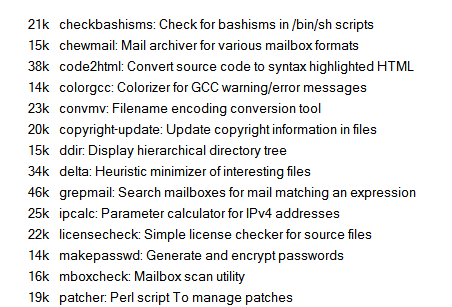
Default installation does not include several important utilities. Among them:
- mc
- tidy
- dos2unix
- bashdb
- zip/unzip
- wget
- rsync
- tree
- vim
By default Cygwin mapped all Windows drive as /cygdrive/c, /cygdrive/d, etc.
The slash ('/') directory points to the system partition (C:) by default. In addition to selecting the slash partition, it allows mounting arbitrary Win32 paths into the POSIX file system space using mount command
mount [OPTION] [<win32path> <posixpath>]
Many people mount each drive letter under the slash partition (e.g. C:\ to /c, D:\ to /d, etc...). That is simpler that /cygdrive/c, /cygdrive/d, etc). Here is additional information about options of the mount command in Cygwin:
-b, --binary (default) text files are equivalent to binary files (newline = \n)
-c, --change-cygdrive-prefix change the cygdrive path prefix to <posixpath>
-f, --force force mount, don't warn about missing mount point directories
-h, --help output usage information and exit
-m, --mount-commands write mount commands to replicate user and system mount points and cygdrive prefixes
-o, --options X[,X...] specify mount options
-p, --show-cygdrive-prefix show user and/or system cygdrive path prefix
-s, --system (default) add system-wide mount point
-t, --text text files get \r\n line endings
-u, --user add user-only mount point
-v, --version output version information and exit
-x, --executable treat all files under mount point as executables
-E, --no-executable treat all files under mount point as non-executables
-X, --cygwin-executable treat all files under mount point as cygwin executables
Path translations can be done by executing the cygpath utility program
Usage: cygpath (-d|-m|-u|-w|-t TYPE) [-f FILE] [OPTION]... NAME...
       cygpath [-c HANDLE]
       cygpath [-ADHOPSW]
       cygpath [-F ID]
Convert Unix and Windows format paths, or output system path information

Output type options:
  -d, --dos             print DOS (short) form of NAMEs (C:\PROGRA~1\)
  -m, --mixed           like --windows, but with regular slashes (C:/WINNT)
  -M, --mode            report on mode of file (currently binmode or textmode)
  -u, --unix            (default) print Unix form of NAMEs (/cygdrive/c/winnt)
  -w, --windows         print Windows form of NAMEs (C:\WINNT)
  -t, --type TYPE       print TYPE form: 'dos', 'mixed', 'unix', or 'windows'
Path conversion options:
  -a, --absolute        output absolute path
  -l, --long-name       print Windows long form of NAMEs (with -w, -m only)
  -p, --path            NAME is a PATH list (i.e., '/bin:/usr/bin')
  -s, --short-name      print DOS (short) form of NAMEs (with -w, -m only)
System information:
  -A, --allusers        use `All Users' instead of current user for -D, -P
  -D, --desktop         output `Desktop' directory and exit
  -H, --homeroot        output `Profiles' directory (home root) and exit
  -O, --mydocs          output `My Documents' directory and exit
  -P, --smprograms      output Start Menu `Programs' directory and exit
  -S, --sysdir          output system directory and exit
  -W, --windir          output `Windows' directory and exit
  -F, --folder ID       output special folder with numeric ID and exit
Other options:
  -f, --file FILE       read FILE for input; use - to read from STDIN
  -o, --option          read options from FILE as well (for use with --file)
  -c, --close HANDLE    close HANDLE (for use in captured process)
  -i, --ignore          ignore missing argument
  -h, --help            output usage information and exit
  -v, --version         output version information and exit
The cygpath program is a utility that converts Windows native filenames to Cygwin POSIX-style pathnames and vice versa. It can be used when a Cygwin program needs to pass a file name to a native Windows program, or expects to get a file name from a native Windows program. Alternatively, cygpath can output information about the location of important system directories in either format.
- The -u and -w options indicate whether you want a conversion to UNIX (POSIX) format (-u) or to Windows format (-w). Use the -d to get DOS-style (8.3) file and path names. The -m option will output Windows-style format but with forward slashes instead of backslashes. This option is especially useful in shell scripts, which use backslashes as an escape character.
- In combination with the -w option, you can use the -l and -s options to use normal (long) or DOS-style (short) form. The -d option is identical to -w and -s together.
- Caveat: The -l option does not work if the check_case parameter of CYGWIN is set to strict, since Cygwin is not able to match any Windows short path in this mode.
- The -p option means that you want to convert a path-style string rather than a single filename. For example, the PATH environment variable is semicolon-delimited in Windows, but colon-delimited in UNIX. By giving -p you are instructing cygpath to convert between these formats.
- The -i option supresses the print out of the usage message if no filename argument was given. It can be used in make file rules converting variables that may be omitted to a proper format. Note that cygpath output may contain spaces (C:\Program Files) so should be enclosed in quotes.
Example 3.5. Example cygpath usage
#!/bin/sh
if [ "${1}" = "" ];
	then
		XPATH=".";
	else
		XPATH="$(cygpath -w "${1}")";
fi
explorer $XPATH &
The capital options -D, -H, -P, -S, and -W output directories used by Windows that are not the same on all systems, for example -S might output C:\WINNT\SYSTEM32 or C:\WINDOWS\SYSTEM. The -H shows the Windows profiles directory that can be used as root of home. The -A option forces use of the "All Users" directories instead of the current user for the -D, -O and -P options. The -F outputs other special folders specified by their internal numeric code (decimal or 0xhex). For valid codes and symbolic names, see the CSIDL_* definitions in the include file /usr/include/w32api/shlobj.h from package w32api. The current valid range of codes for folders is 0 (Desktop) to 59 (CDBurn area). On Win9x systems with only a single user, -A has no effect; -D and -AD would have the same output. By default the output is in UNIX (POSIX) format; use the -w or -d options to get other formats.
Win32 file systems are case preserving but case insensitive. Cygwin does not currently support case distinction because, in practice, few UNIX programs actually rely on it.
Symbolic links are emulated by files containing a magic cookie followed by the path to which the link points. They are marked with the System attribute so that only files with that attribute have to be read to determine whether or not the file is a symbolic link. Hard links are fully supported under Windows NT on NTFS file systems.
The inode number for a file is calculated by hashing its full Win32 path. The inode number generated by the stat call always matches the one returned in d_ino of the dirent structure. It is worth noting that the number produced by this method is not guaranteed to be unique. However, we have not found this to be a significant problem because of the low probability of generating a duplicate inode number.
Cygwin provides the following functionality for WIN32 applications:Cygwin provides full set of Posix utilities (or more correctly GNU toolset).
| A | B | C | D | E | F | G | H | I | J | K | L | M |
| N | O | P | R | S | Q | T | U | V | W | X | Y | Z |
|
|
|
|
IMHO there are three Unix tools that can spell the difference between really good programmer or sysadmin and just above average one (even if the latter has solid knowledge of shell and Perl, knowledge of shell and Perl is necessary but not sufficient):
This two tools can also be used as a fine text in interviews on advanced Unix-related positions if you have several similar candidates. Other things equal, their knowledge definitely demonstrate the level of Unix culture superior to the average "command line junkies" level ;-)
Overview of books about GNU/open source tools can be found in Unix tools bibliography. There not that much good books on the subject, still even average books can provide you with insight in usage of the tool that you might never get via daily practice. Please note that Unix is a pretty complex system and some aspects of it are non-obvious even for those who have more than ten years of experience.
|
|
Switchboard | ||||
| Latest | |||||
| Past week | |||||
| Past month | |||||
 |
 |
 |
On Mon, 7 Jul 2003, Brian Dessent wrote:
> Corinna Vinschen wrote:
> >
> > On Mon, Jul 07, 2003 at 09:19:57AM +0100, William S Fulton wrote:
> > > Is it possible to mount the registry into the filesystem?
> >
> > It is already. Try `ls -l /proc/registry'
>
> Neat. Is there any way to tell the type of the key's value using this
> interface? For example if I wanted to modify a key's value through
> "echo foo > /prog/registry/.../Key", how do I tell Cygwin that I want
> the type to be REG_EXPAND_SZ, REG_DWORD, REG_MULTI_SZ, REG_SZ, etc?You don't. /proc/registry is read-only. If you want to modify the
registry, use regtool.> Conversely is there a way to determine the type when reading? It
> appears that Cygwin does what you expect (e.g. returning a \0 delimited
> list for REG_MULTI_SZ) but is there any way to ask it directly?Not that I know of. Look at fhandler_registry.cc for implementation
details.> This is yet another really cool Cygwin feature that I had no idea about
> until now... :-)
> BrianIt pays to read the release notes... ;-)
Igor
|
|
|
|
|
|
To set up bash so that cut and paste work properly, click on the "Properties" button of the window, then on the "Misc" tab. Make sure that "QuickEdit mode" and "Insert mode" are checked. These settings will be remembered next time you run bash from that shortcut. Similarly you can set the working directory inside the "Program" tab. The entry "%HOME%" is valid, but requires that you set HOME in the Windows environment.
Your home directory should contain three initialization files that control the behavior of bash. They are .profile, .bashrc and .inputrc. The Cygwin base installation creates stub files when you start bash for the first time.
.profile (other names are also valid, see the bash man page) contains bash commands. It is executed when bash is started as login shell, e.g. from the command bash --login. This is a useful place to define and export environment variables and bash functions that will be used by bash and the programs invoked by bash. It is a good place to redefine PATH if needed. We recommend adding a ":." to the end of PATH to also search the current working directory (contrary to DOS, the local directory is not searched by default). Also to avoid delays you should either unset MAILCHECK or define MAILPATH to point to your existing mail inbox.
.bashrc is similar to .profile but is executed each time an interactive bash shell is launched. It serves to define elements that are not inherited through the environment, such as aliases. If you do not use login shells, you may want to put the contents of .profile as discussed above in this file instead.
shopt -s nocaseglobwill allow bash to glob filenames in a case-insensitive manner. Note that .bashrc is not called automatically for login shells. You can source it from .profile.
.inputrc controls how programs using the readline library (including bash) behave. It is loaded automatically. For full details see the Function and Variable Index section of the GNU readline manual. Consider the following settings:
# Ignore case while completing
set completion-ignore-case on
# Make Bash 8bit clean
set meta-flag on
set convert-meta off
set output-meta on
The first command makes filename completion case insensitive, which can be convenient in a Windows environment. The next three commands allow bash to display 8-bit characters, useful for languages with accented characters. Note that tools that do not use readline for display, such as less and ls, require additional settings, which could be put in your .bashrc:
alias less='/bin/less -r'
alias ls='/bin/ls -F --color=tty --show-control-chars'
|
|
|
Gow is a lightweight alternative to Cygwin. It uses a convenient Windows installer that installs about 130 extremely useful Unix applications compiled as native Win32 binaries. It is designed to be as...
|
|
|
|
|
|
March 13, 2005 | users.soe.ucsc.edu/~you
|
|
|
May 2, 2007 | www-cdf.fnal.gov
Mrxvt
rxvt is an xterm-like terminal program. mrxvt is built from the same code base, but adds tabs (similar to konsole terminals in KDE). It turns out building these for Cygwin (assuming you have the X11 libraries installed) is very easy.
Note: I recommend building mrxvt from source, but for those who want to try a built version, you can grab mine. I also have a perl script, mrxvt_options.pl, that lets you change the names of tabs, etc. mrxvt.bat (assuming you put mrxvt.exe in c:\cygwin\bin) will start it up for you.
- Visit the mrxvt home page
- Read the README file.
- Download the source.
- Untar the source file
cygwin> tar xzf mrxvt_0.40.tar.gz
- Configure as shown in the readme file
cygwin> ./configure --enable-everything --disable-debug
- Make and install
cygwin> make && make installYou should be good to go. Here are the entries I have in my ~/.Xdefaults file:
!##############
!#  mrxvt
!##############
mrxvt*font:                  6x13
mrxvt*foreground:            white
mrxvt*background:            black
mrxvt*scrollbarStyle:        rxvt
! These keys are used by emacs, disable them
mrxvt*hotkey*Dummy:          Ctrl+Shift+underscore
mrxvt*hotkey*Dummy:          Ctrl+Shift+plus
Installing Perl TkNote: As of December 2005, you can download Tk from any Cygwin mirror using the cygwin installer. I recommend trying this first before building your own.
Perl Tk is a useful GUI addition to the Perl language. In my Useful files tar ball, you will find a few scripts that take advantage of this package. It is, however, by no means necessary, so feel free not to install it (or install it later). Note: I have always installed Perl Tk 8.00.024. There are newer versions; I just haven't tried them. If you're curious, please try and let me know how it goes. If you want to be lazy and play it safe, follow the directions below. I'm assuming that you have a full cygwin installation as shown above.
You should now be good to go. Console GUI The console GUI is a Perl Tk script that I wrote that makes it easy to log into many different machines. You can find it in the tgz above.
- Open a new Cygwin window and fix a problem with Perl
cygwin> cd /usr/X11R6/lib
cygwin> ln -s libX11.dll.a libX11.a
Close the window.
Note: I've been told that you don't need to do this step anymore, but I haven't verified that yet.- Grab the source of Tk-800.024.tar.gz and save it somewhere cygwin can see it (e.g. c:\cygwin\home\yourname\Tk-800.024.tar.gz).
- Open a window in Cygwin and untar and feather it:
cygwin> tar xzf Tk-800.024.tar.gz- Log into the new directory
cygwin> cd Tk800.024- Read the README.cygwin file
- Configure the makefile as specified in the readme file
cygwin> perl Makefile.PL x- Start the build
cygwin> make- It has always worked for me. Hopefully it will work for you. If the build is successful, install it
cygwin> make install
- Take all files in the bin/ directory and copy them to your bin dir. Copy also the .console.properties file (a directory up) to your home area.
- I have the shortcut I use to start the console script (Console.lnk). Right-click on the link and save it to your desktop. You will have to edit this shortcut to point to your version.
- Right-click on the icon and choose properties.
- Edit the Target and replace /home/cplager with /home/yourname
- The shortcut also assumes that run.exe is in /bin, so copy it there
cygwin> cp /usr/X11R6/bin/run.exe /bin/- Summary of Commands:
- l/L - start Local xterm
- x/X - start xterm as you on machine selected
- o/O - start xterm as other on machine selected
- The console GUI is configurable. Edit the .console.properties file for details.
- If your cygwin username does not match your FNAL username (a bad idea, but it happens), you will need to:
- Add a line in the .console.properties
- user fnalUserName- Edit bin/kinit.pl file where you add what is in red
system "/bin/kinit -n -l 100d [email protected]";
|
|
|
June 3, 2009 | zenovations.com
After repeated problems setting up crond to run in cygwin (it just doesn't like the user accounts, no matter how enthusiastically I argue that I'm me), I spent some time figuring out how to run a Cygwin command as a scheduled task from Windows scheduler. Here is what I figured out.
Based on this mail archive post, I created the following cygrun.bat file:
?[Copy to clipboard]View Code BASH
    @echo off
    rem set HOME=c:\
    if "%DEF_PATH%"=="" set DEF_PATH=%PATH%
    set PATH=c:\cygwin\bin;%DEF_PATH%
    set myargs=%*
    if "%myargs%" == "" goto noarg
    rem echo %myargs%
    bash --rcfile %HOME%/.bashrc -i -c "%myargs%"
    c:
    rem pause
    sleep 1
    goto exit
    :noarg

    rxvt -e /usr/bin/bash --login -i

    :exit
    exit
Then I tested the script from the command line as follows, until I had the syntax just so:
?[Copy to clipboard]View Code BASH
Once I was able to run it happily, I added the scheduled task as follows:
?[Copy to clipboard]View Code BASH
    Run: C:\WINDOWS\system32\CMD.EXE /x /c start "Some title" /min
c:\cygwin\cygrun.bat cygwin_script arg1 arg2
    Start In: c:\cygwin     <-- must be a real disk drive and path
    Run as: domain\username
Unfortunately, I was never able to figure out how to redirect stdout and stderr. I tried plenty of variations on ">> /some/path/to/log.txt 2>&1″ with no joy. Instead, I just changed all the commands in the script and added that line on to each echo statement. Sad, but functional.
|
|
|
See also Better Cygwin Terminal
Bash Shell can also be run through the Cygwin's rxvt terminal distributed with cygwin. It is a colour vt102 terminal emulator intended as an xterm replacement. It can be launched without starting any X Window System. The terminal has some nice feature including familiar cut and paste operations (familiar to Unix users). It also offers better fonts.
Rxvt can be started by typing the following command in a command prompt window.
D:\Programs\Cygwin\bin\rxvt.exe -sl 500 -fn courier -bg wheat
-sr -title "Bash Sailor" -e D:\Programs\Cygwin\bin\bash.exe --rcfile %HOME%\.bashrc
|
|
|
Among files
Thu Oct 9 00:36:24 2003 1249 usr/share/doc/Cygwin/d-1.2.0.README
Thu Oct 9 00:36:25 2003 0 usr/share/doc/d-1.2.0/
Thu Oct 9 00:36:25 2003 17992 usr/share/doc/d-1.2.0/COPYING
Thu Oct 9 00:36:25 2003 5685 usr/share/doc/d-1.2.0/d.conf.example
Thu Oct 9 00:36:25 2003 445 usr/share/doc/d-1.2.0/README
Thu Oct 9 00:36:24 2003 0 usr/share/info/
Thu Oct 9 00:36:24 2003 17027 usr/share/info/d.info
Thu Oct 9 00:36:24 2003 0 usr/share/man/
Thu Oct 9 00:36:25 2003 0 usr/share/man/man1/
Thu Oct 9 00:36:25 2003 1915 usr/share/man/man1/d.1
Here is example of Tree printing
[0] [BezrouN@USBT92DD1:~] $ d -T
/home/bezroun/:
  |-etc/:
  |   |-Hosts/:
  |   |-DIR_COLORS
  |   |-DIR_COLORS.xterm
  |   |-aix_functions
  |   `-dir_history
  |-telnet_test.pl
  `-telnet_test.pl~
|
|
|
Princeton University
Use the following steps to successfully get OpenSSH working as a server:
- Set up your environment for Cygwin. For NT 4 and Windows 2000, this is done by right-clicking on My Computer and choosing Properties. In NT4, it's on the Environment tab. In Windows 2000, it's the Environment Variables on the Advanced tab. Add the following setting to the System Environment:
Append the following variable to contain the following:
- CYGWIN = ntsec tty
Note that if you are NT/2K on FAT(32), the ntsec option for the CYGWIN variable won't help you much. In these cases, just set CYGWIN to "tty". (Note: Through email, I've been notified that having CYGWIN=ntsec actually does made a difference on FAT(32) systems. Geoffrey Hoo)
- Path : ;C:\Cygwin\bin
- Download the Cygwin Setup Program into a temporary folder like C:\CygwinInstall.
- Run "C:\CygwinInstall\Setup.exe", choose " Install from Internet ", choose a suitable mirror (I like "ftp://mirrors.rcn.net").
- Now choose the packages you want to install. Click on the "+" next to "Admin" to expand it. Click on the word "Skip" next to the word cygrunsrv to install the NT/Win2k/XP Cygwin Service Initiator. Install cygwin-doc from "Doc", nano and/or vim from "Editors" and openssh from "Net".
- [Optional] After Setup is complete, I like to make a couple of changes to the default installation: - Download and install ftp://ftp.erdelynet.com/mike/cygwin/profile, ftp://ftp.erdelynet.com/mike/cygwin/sh_aliases into /etc. - Change the Cygwin icons so that, instead of pointing to cygwin.bat, they point to "c:\cygwin\bin\bash.exe --login -i" and start in "c:\cygwin\bin"
NOTE: Unless specified otherwise, run the following commands within the Cygwin Bash Shell installed in your Start Menu.
- Now, you'll want to configure sshd. This is MUCH simpler than it used to be.
Run "ssh-host-config -y" to set it up. This step will create necessary configuration files, a priviledge separation user and necessary directories. When prompted with "CYGWIN=" type what you set CYGWIN to in step 1 (tty ntsec).
- You will probably want to change permissions and ownership on some files:
- cd /; chmod -R og-w .
- chmod og+w /tmp
- touch /var/log/sshd.log
- chown system:system /var/log/sshd.log /var/empty /etc/ssh_h*
- chmod 755 /var/empty
- Now you are ready to start the service: "cygrunsrv -S sshd"
- Test the service by running "ssh localhost"
|
|
|
SecurityForest
Tutorial by Loni
How-to setup an SSH daemon using Cygwin (Only tested on windows 2000)Make sure you install the following:
Admin -> Cygrunsrv
Net   -> OpenSSH
Edit the cygwin.bat file and add the CYGWIN environmental variable
notepad d:\cygwin\cygwin.bat

add the following:
    set CYGWIN=binmode tty ntsec
Start a cygwin bash console
Configure SSH
# ssh-host-config
    Should privilege separation be used? (yes/no) no
    Do you want to install sshd as service? (yes/no) yes
Now you have a choice of the service being automatically or manually started
Automatically Started:# cygrunsrv -S sshdManually Started:# net start sshd # net stop sshd
|
|
|
OpenSSH for Windows is a free package that installs a minimal OpenSSH server and client utilities in the Cygwin package without needing the full Cygwin installation.The OpenSSH for Windows package provides full SSH/SCP/SFTP support. SSH terminal support provides a familiar Windows Command prompt, while retaining Unix/Cygwin-style paths for SCP and SFTP.
|
|
|
Note : This set of instructions has worked for me at our institution. You should read /usr/share/doc/Cygwin/openssh.README after installing cygwin and check the cygwin mailing list if you encounter problems.
|
|
|
PuTTYcyg is a patched version of PuTTY that, in addition to telnet, rlogin, ssh, and serial connections, can also be used as a local Cygwin terminal instead of the Windows console or xterm. See README.txt for more information.
Download the latest release (20071202).
PuTTYcyg may require a recent version of Cygwin. PuTTYcyg version 20071202 has been tested with version 1.5.24-2 of cygwin1.dll and several users report success with 1.5.25.
Problems? Please read the (very short) FAQ and the (very short) README before filing an issue.
|
|
|
v1.07 - 2006/11/26 Copyright(C) 2000-2006 NSym.
= Japanese / English =Overview of CygTerm
In Cygwin, you can use a shell such as bash on the DOS window.
However, using on the DOS window is inconvenient when you want to do window resizing, copy & paste, or etc.I guess many people may use Unix machines with a terminal emulator via Telnet.
It is convenient to use Cygwin in the same way as it, that is to operate with a VT100 terminal emulator.
At first you think that preparing inetd, in.telnetd and so on in Cygwin and login from a terminal emulator...But, here is another approach.
In short it is to connect a terminal emulator and Cygwin shell directly.
You simply use a terminal emulator instead of cygwin.bat DOS window without login.Idea
The idea is to make a program which performs starting a terminal emulator and Cygwin shell, and relaying their I/O.
When you run this program a specified terminal emulator starts up and the Cygwin shell command line prompt appears in it.
screen shotDesign
Details of cygterm.exe

      [1] Prepare a listener socket to wait for a TELNET connection.
          Find out an unused TCP port number to assign to the socket from a specified range.

      [2] Invoke a terminal emulator in another thread.
          Then specify IP address `127.0.0.1' and the port number [1] in the command line arguments.

      [3] Accept the connection from the terminal emulator.
          Refuse it except a connection from `127.0.0.1' in security.

      [4] Do fork(), and in the child process, invoke a shell under PTY (pseudo terminal) slave side.

      [5] Relay I/O between the TELNET connection socket [3] and the PTY master side of [4].

Support for TELNET protocol (options negotiation)

      Receive the notification of terminal-type from a terminal emulator,
      and apply it to the environment variable TERM on a shell.

      Receive the notification of terminal-size from a terminal emulator,
      and apply it to window size of PTY.

      [Ref. RFC854 TELNET PROTOCOL SPECIFICATION]

cygterm.exe is implemented as an window-less Win32 application.
Download
Source Files
        README       -  description file
        README-j     -  original README in Japanese
        Makefile     -  MAKEFILE for installation
        cygterm.cc   -  program source code
        cygterm.cfg  -  configuration file
download cygterm107.tgz (about 14kb) [for Cygwin-1.5.5-22+gcc-3.4, newer]
download cygterm106.tgz (about 13kb)--- License ---
CygTerm is a free software distributed under the terms of the GNU General Public License (GPL)
published by Free Software Foundation. See GPL (http://www.gnu.org/copyleft/gpl.html).--- Note ---
Any program including non-GPL program can invoke the CygTerm executable (cygterm.exe) and communicate with it.
Install
Do `make install' under Cygwin.
- - - - - - - - - -
Be sure to specify the install directory by BINDIR in Makefile in advance.
cygterm.exe and cygterm.cfg are installed in BINDIR. cygterm.cfg is not overwritten.
Configuration
cygterm.cfg is a configuration file.
This includes definitions for the command lines of a terminal emulator and a shell, and several parameters.
cygterm.cfg is loaded from the same directory cygterm.exe exists in.
      An example of cygterm.cfg
      +-----------------------------------------------------------------------
      | TERM = C:\program files\ttermpro\ttermpro.exe %s %d /KR=SJIS /KT=SJIS
      | TERM_TYPE = vt100
      | PORT_START = 20000
      | PORT_RANGE = 40
      | SHELL = /bin/bash
      | ENV_1 = MAKE_MODE=unix
      | ENV_2 = HOME=/home
      |   :         :

    TERM
        This is the command line to execute a terminal emulaitor.  Specify the full path to the
        command if it isn't in Windows search path.  This needs to be described `%s' and `%d'
        for the host and port number.

    TERM_TYPE
        This terminal type is adopted when the terminal emulator did not give a terminal type.
        (default: vt100) Then this value is set to the environment variable TERM on a shell.

    PORT_START
        This is the minimum TCP port number allowed for use.  (default: 20000)

    PORT_RANGE
        This is the maximum number of TCP ports allowed for use.  (default: 40)

        cygterm.exe looks for an unused port number between PORT_START and PORT_START+PORT_RANGE,
        and therefore can be run concurrently as many as this number.

    SHELL
        This is the command line to execute a shell in Cygwin side (normally /bin/bash).
        Specify the full path to the shell.

    ENV_X
        This is the environment variable to be set when starting the shell.  It should be of the
        form `name=value' (like putenv).  It is possible to give as many environment variables
        as needed by beginning with "ENV_".
Usage
Command Line Options

        cygterm.exe [-t 'terminal-emulator'] [-p port-number] [-dumb]
                    [-s 'shell'] [-v 'env-var' ...]

        -t 'terminal-emulator'
                Specify the command line of a terminal emulator to execute.
                This format is the same as TERM in the configuration file.
                The command line should be enclosed in quotes to include spaces.

        -p port-number
                Instead of executing a terminal emulator, try connection to this
                port number of localhost.  It is considered another program uses
                `-p' option to use Cygwin via cygterm.exe.

        -dumb
                Suppress the TELNET options negotiation.  And ignore any TELNET
                commands sent from terminal side.  The environment variable TERM
                is set to `dumb' on the shell side.

        -s 'shell'
                Specify the command line of a shell on Cygwin to execute.
                This format is the same as SHELL in the configuration file.
                The command line should be enclosed in quotes to include spaces.
                Any command can be specified even if a non-shell command.

        -v 'env-var'
                Specify the environment variable to be set when starting the shell.
                This format is the same as ENV_X in the configuration file.
                The expression should be enclosed in quotes to include spaces.
                One or more `-v' options are available.
The terminal emulator or connection port number, and the shell on Cygwin, these need to be specified at least.
If these are given in the command line, cygterm.exe can be run without configuration file cygterm.cfg.
Society
Groupthink : Two Party System as Polyarchy : Corruption of Regulators : Bureaucracies : Understanding Micromanagers and Control Freaks : Toxic Managers : Harvard Mafia : Diplomatic Communication : Surviving a Bad Performance Review : Insufficient Retirement Funds as Immanent Problem of Neoliberal Regime : PseudoScience : Who Rules America : Neoliberalism : The Iron Law of Oligarchy : Libertarian Philosophy
Quotes
War and Peace : Skeptical Finance : John Kenneth Galbraith :Talleyrand : Oscar Wilde : Otto Von Bismarck : Keynes : George Carlin : Skeptics : Propaganda : SE quotes : Language Design and Programming Quotes : Random IT-related quotes : Somerset Maugham : Marcus Aurelius : Kurt Vonnegut : Eric Hoffer : Winston Churchill : Napoleon Bonaparte : Ambrose Bierce : Bernard Shaw : Mark Twain Quotes
Bulletin:
Vol 25, No.12 (December, 2013) Rational Fools vs. Efficient Crooks The efficient markets hypothesis : Political Skeptic Bulletin, 2013 : Unemployment Bulletin, 2010 : Vol 23, No.10 (October, 2011) An observation about corporate security departments : Slightly Skeptical Euromaydan Chronicles, June 2014 : Greenspan legacy bulletin, 2008 : Vol 25, No.10 (October, 2013) Cryptolocker Trojan (Win32/Crilock.A) : Vol 25, No.08 (August, 2013) Cloud providers as intelligence collection hubs : Financial Humor Bulletin, 2010 : Inequality Bulletin, 2009 : Financial Humor Bulletin, 2008 : Copyleft Problems Bulletin, 2004 : Financial Humor Bulletin, 2011 : Energy Bulletin, 2010 : Malware Protection Bulletin, 2010 : Vol 26, No.1 (January, 2013) Object-Oriented Cult : Political Skeptic Bulletin, 2011 : Vol 23, No.11 (November, 2011) Softpanorama classification of sysadmin horror stories : Vol 25, No.05 (May, 2013) Corporate bullshit as a communication method : Vol 25, No.06 (June, 2013) A Note on the Relationship of Brooks Law and Conway Law
History:
Fifty glorious years (1950-2000): the triumph of the US computer engineering : Donald Knuth : TAoCP and its Influence of Computer Science : Richard Stallman : Linus Torvalds : Larry Wall : John K. Ousterhout : CTSS : Multix OS Unix History : Unix shell history : VI editor : History of pipes concept : Solaris : MS DOS : Programming Languages History : PL/1 : Simula 67 : C : History of GCC development : Scripting Languages : Perl history : OS History : Mail : DNS : SSH : CPU Instruction Sets : SPARC systems 1987-2006 : Norton Commander : Norton Utilities : Norton Ghost : Frontpage history : Malware Defense History : GNU Screen : OSS early history
Classic books:
The Peter Principle : Parkinson Law : 1984 : The Mythical Man-Month : How to Solve It by George Polya : The Art of Computer Programming : The Elements of Programming Style : The Unix Hater’s Handbook : The Jargon file : The True Believer : Programming Pearls : The Good Soldier Svejk : The Power Elite
Most popular humor pages:
Manifest of the Softpanorama IT Slacker Society : Ten Commandments of the IT Slackers Society : Computer Humor Collection : BSD Logo Story : The Cuckoo's Egg : IT Slang : C++ Humor : ARE YOU A BBS ADDICT? : The Perl Purity Test : Object oriented programmers of all nations : Financial Humor : Financial Humor Bulletin, 2008 : Financial Humor Bulletin, 2010 : The Most Comprehensive Collection of Editor-related Humor : Programming Language Humor : Goldman Sachs related humor : Greenspan humor : C Humor : Scripting Humor : Real Programmers Humor : Web Humor : GPL-related Humor : OFM Humor : Politically Incorrect Humor : IDS Humor : "Linux Sucks" Humor : Russian Musical Humor : Best Russian Programmer Humor : Microsoft plans to buy Catholic Church : Richard Stallman Related Humor : Admin Humor : Perl-related Humor : Linus Torvalds Related humor : PseudoScience Related Humor : Networking Humor : Shell Humor : Financial Humor Bulletin, 2011 : Financial Humor Bulletin, 2012 : Financial Humor Bulletin, 2013 : Java Humor : Software Engineering Humor : Sun Solaris Related Humor : Education Humor : IBM Humor : Assembler-related Humor : VIM Humor : Computer Viruses Humor : Bright tomorrow is rescheduled to a day after tomorrow : Classic Computer Humor
The Last but not Least Technology is dominated by two types of people: those who understand what they do not manage and those who manage what they do not understand ~Archibald Putt. Ph.D
Copyright © 1996-2021 by Softpanorama Society. www.softpanorama.org was initially created as a service to the (now defunct) UN Sustainable Development Networking Programme (SDNP) without any remuneration. This document is an industrial compilation designed and created exclusively for educational use and is distributed under the Softpanorama Content License. Original materials copyright belong to respective owners. Quotes are made for educational purposes only in compliance with the fair use doctrine.
FAIR USE NOTICE This site contains copyrighted material the use of which has not always been specifically authorized by the copyright owner. We are making such material available to advance understanding of computer science, IT technology, economic, scientific, and social issues. We believe this constitutes a 'fair use' of any such copyrighted material as provided by section 107 of the US Copyright Law according to which such material can be distributed without profit exclusively for research and educational purposes.
This is a Spartan WHYFF (We Help You For Free) site written by people for whom English is not a native language. Grammar and spelling errors should be expected. The site contain some broken links as it develops like a living tree...
|
|
You can use PayPal to to buy a cup of coffee for authors of this site |
Disclaimer:
The statements, views and opinions presented on this web page are those of the author (or referenced source) and are not endorsed by, nor do they necessarily reflect, the opinions of the Softpanorama society. We do not warrant the correctness of the information provided or its fitness for any purpose. The site uses AdSense so you need to be aware of Google privacy policy. You you do not want to be tracked by Google please disable Javascript for this site. This site is perfectly usable without Javascript.
Last modified: February 18, 2020

